

This automation step triggers a Template email to be sent to the contact.Documentation Index
Fetch the complete documentation index at: https://resend.com/docs/llms.txt
Use this file to discover all available pages before exploring further.
How it works
- Using the dashboard
- Using the API
After adding a trigger, create a new step to Send an email.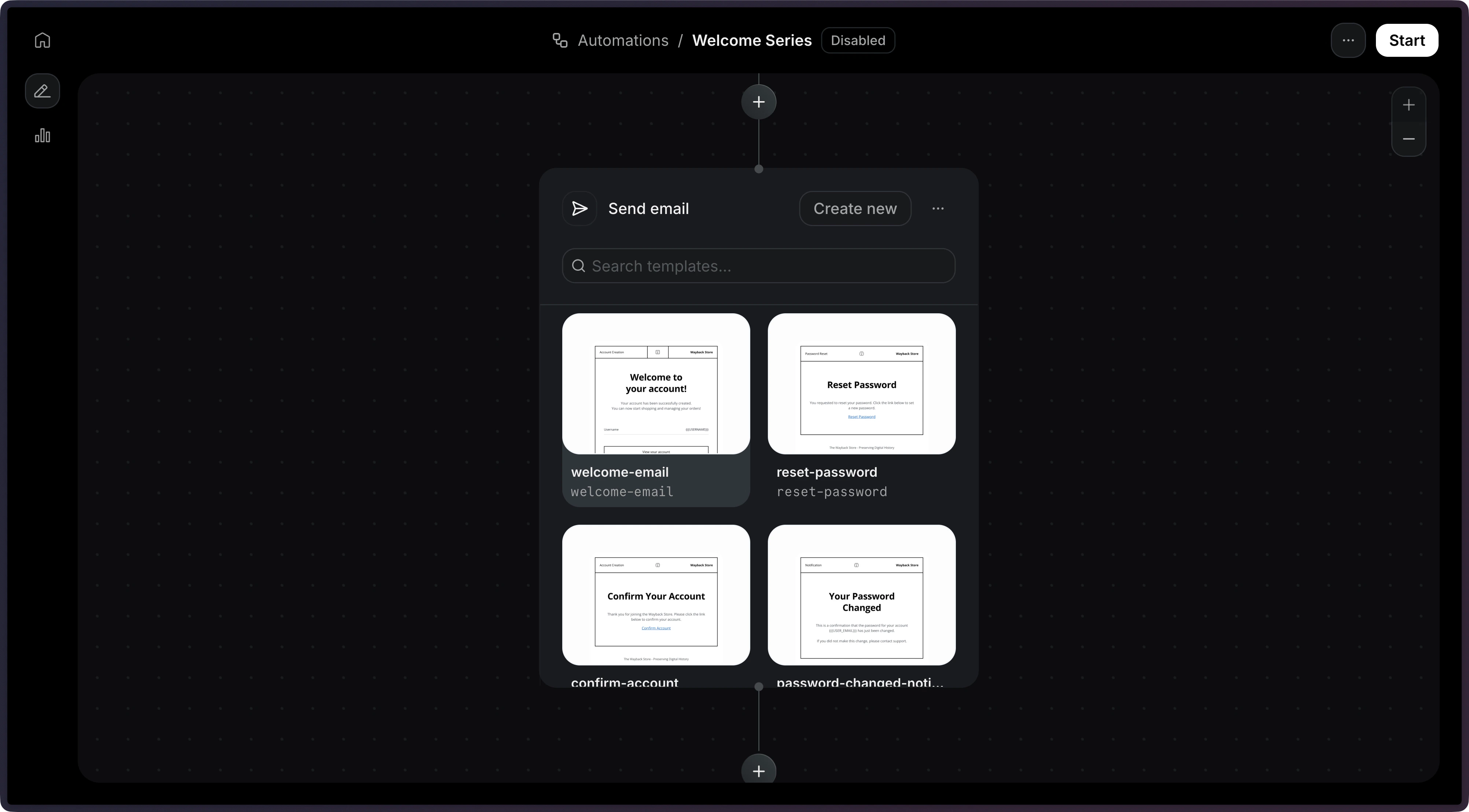
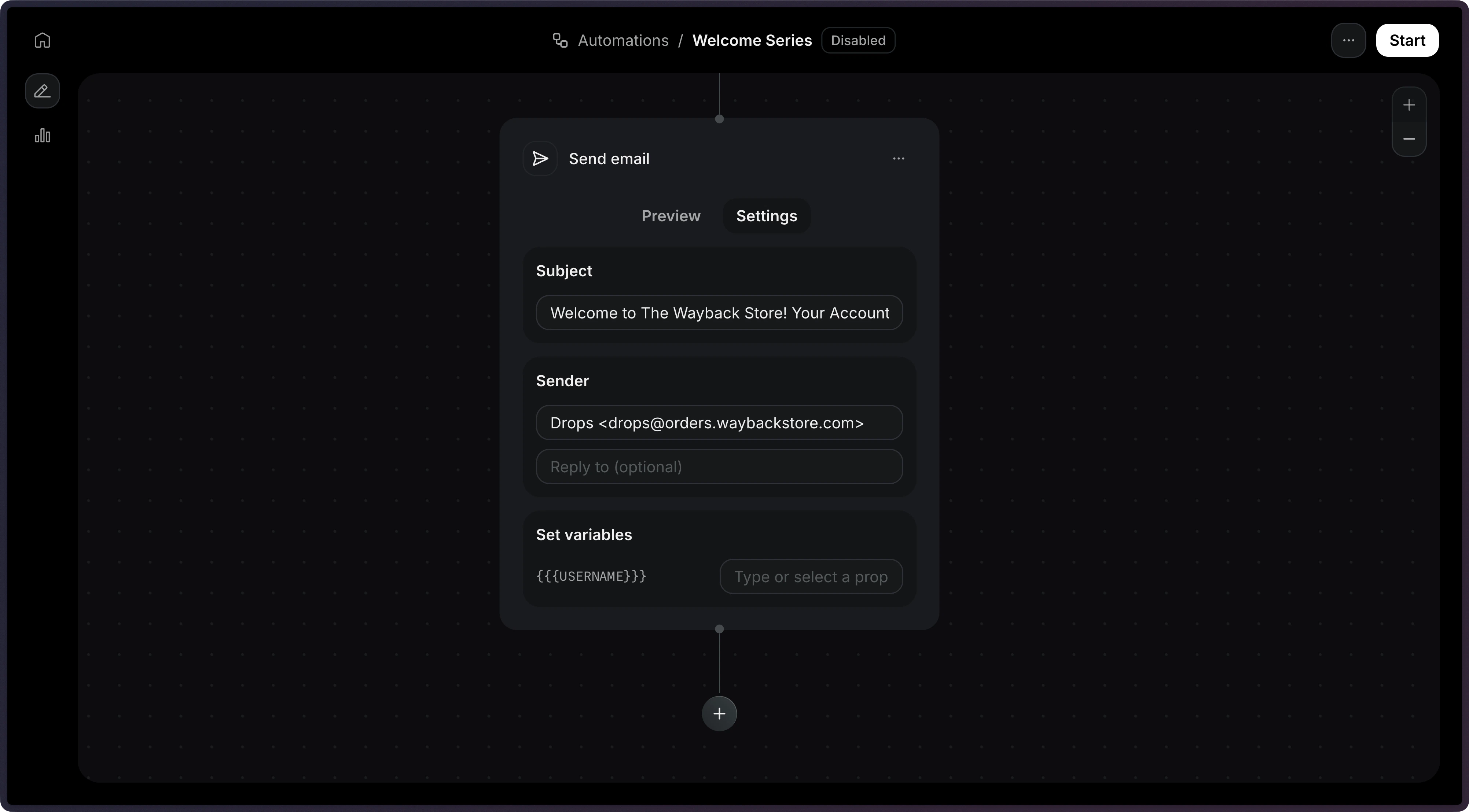
Only
published templates are available to be used in an Automation.Template variables
Use thevariables field to pass data into your template. Each variable value can be a dynamic reference or a static string.
| Type | Format | Description |
|---|---|---|
| Event data | { "var": "event.<field>" } | Resolves a field from the triggering event’s payload. |
| Contact data | { "var": "contact.<field>" } | Resolves a field from the contact record. |
| Waited event data | { "var": "wait_events.<event_name>.<field>" } | Resolves a field from a preceding wait for event step’s payload. |
| Static value | "<string>" | Passed as-is to the template. |
If the same branch has multiple wait for
event steps with the same key, the
resolved data will come from the last event received before the current step.
Configuration
The published template to send. Provide
id and optionally variables.The sender email address.If provided, this value will override the template’s default value.
The email subject line.If provided, this value will override the template’s default value.
Reply-to email address.If provided, this value will override the template’s default value.